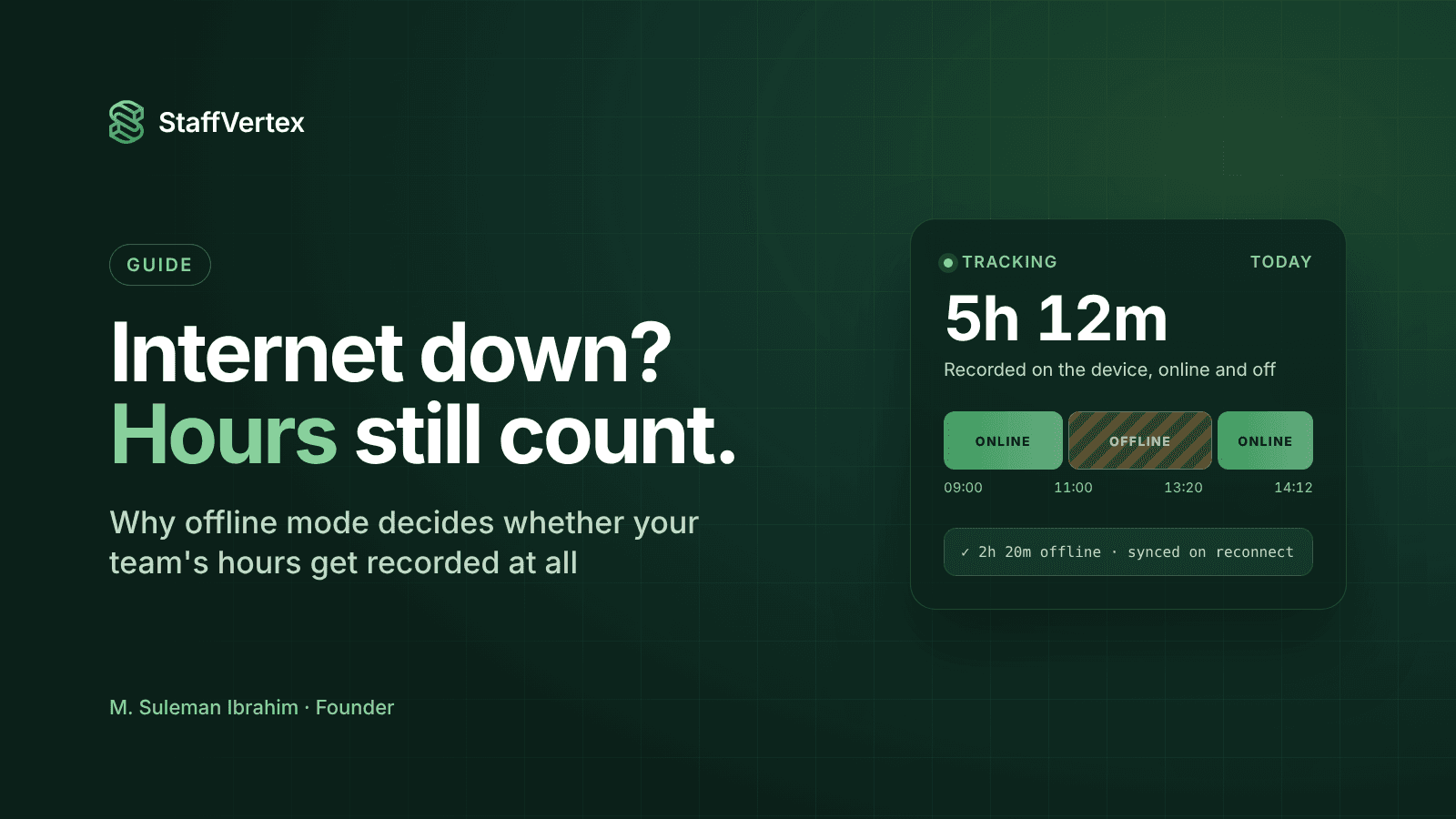
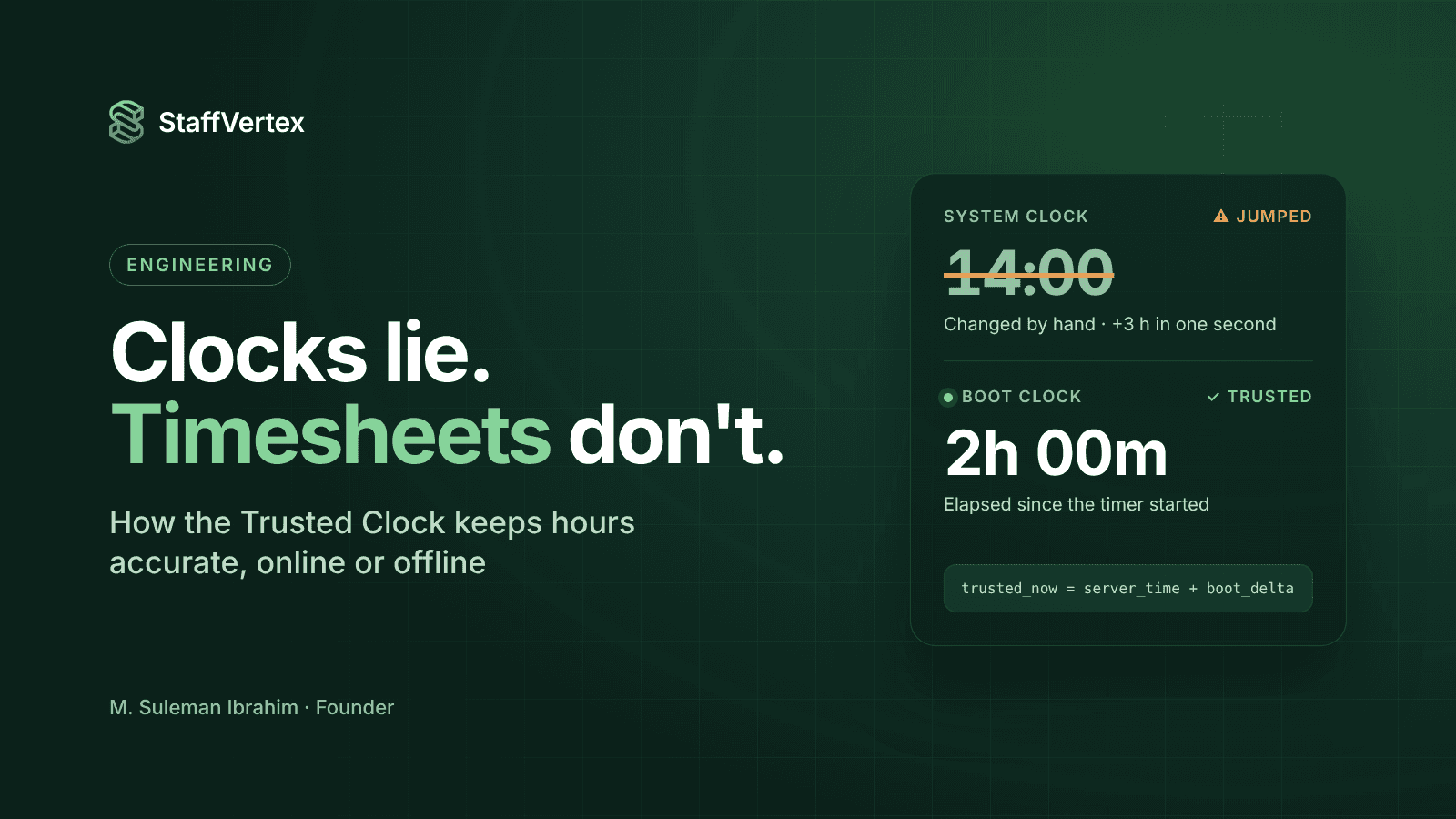
Every time tracker depends on a clock, and most of them trust the one on your computer. That is a problem, because computer clocks drift, jump and can be changed. When a clock lies, a timesheet lies with it, and so do the invoice and the payslip built from it. StaffVertex's Trusted Clock is the part of our desktop app that makes sure the hours you record are the hours that really passed, whether you are online, offline or somewhere in between.
This post explains, without assuming you are an engineer, the ways system clocks go wrong, the principle behind our design, the four layers that protect your time, and what it all means for employees, managers and clients.
Four ways system clocks lie
1. Drift. Computer clocks run slightly fast or slow. A laptop that has not synced with a time server for a while can be minutes off, and offline laptops cannot sync at all.
2. Jumps. Clocks can move in an instant: an automatic resync corrects accumulated drift, a daylight-saving change shifts the hour, or a traveler's laptop changes time zone. A naive timer that subtracts start time from end time sees those jumps as hours worked or lost.
3. Manual changes. Anyone with access to system settings can change the clock. In a tracker that trusts it, moving the clock forward during a session could turn one hour into three.
4. Sleep confusion. When a laptop sleeps with the lid closed, some timers stop, some keep counting and some jump when the machine wakes. The result depends on the operating system and the timer, not on what actually happened.
Most of the time, none of this matters. But time tracking is used for billing and pay, and the rare case where it does matter is exactly the case that causes a dispute.
The principle: separate "how long" from "when"
A timesheet entry answers two different questions:
How long did the work take? This drives pay and billing.
When did it happen? This places the work on the right day and in the right period.
Most trackers answer both by reading the system clock twice. The Trusted Clock answers them separately, using the most reliable source for each.
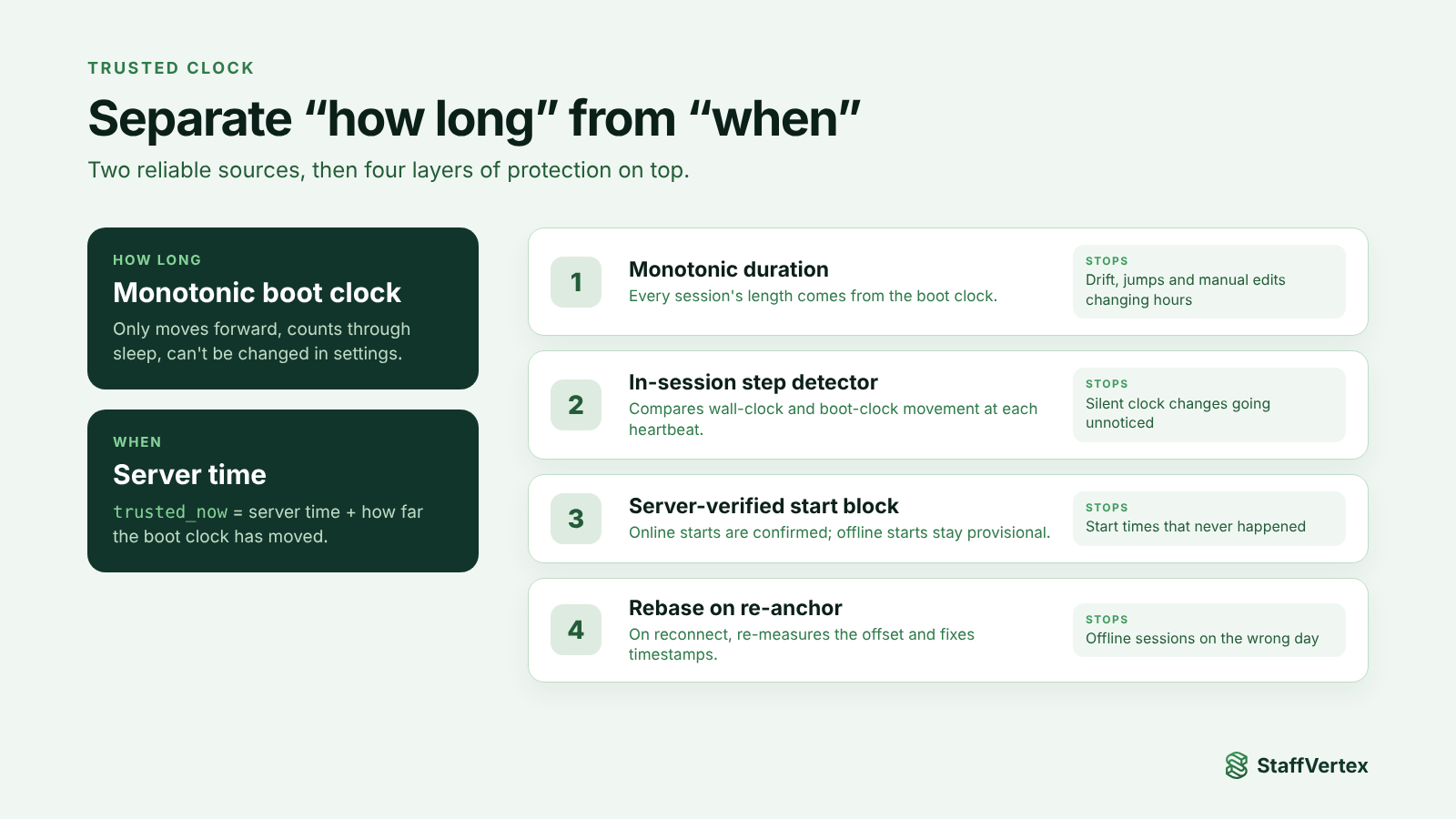
How long comes from the operating system's monotonic boot clock: a counter that starts when the computer boots, only ever moves forward, keeps counting through sleep, and cannot be changed from system settings. On Windows we read GetTickCount64; on macOS, mach_continuous_time.
When comes from our server. Whenever the app is online, it measures the difference between the server's time and its own boot clock, and from then on computes the current time as the server's time plus however much the boot clock has advanced. We call that value trusted_now.
Because neither answer depends on the system's wall clock, changing, drifting or jumping that clock does not change the hours recorded.
The four layers of the Trusted Clock
The design stacks four protections, each covering a case the others cannot.
Layer | What it does | What it protects against |
|---|---|---|
1. Monotonic duration | Measures every session's length with the boot clock, never by subtracting wall-clock times | Drift, jumps and manual clock changes inflating or shrinking hours |
2. In-session step detector | Between heartbeats, compares how far the wall clock moved with how far the boot clock moved; a big mismatch flags a clock step | Silent clock changes during a session going unnoticed |
3. Server-verified start block | When a session starts online, its start time is confirmed against server time; offline starts are marked as provisional | Sessions that claim to have started at a time that never happened |
4. Rebase on re-anchor | When the app reconnects, it re-measures the offset to server time and recalculates the timestamps of anything recorded since the last anchor | Offline sessions landing on the wrong day or hour |
How the layers work together
Imagine someone starts the timer at 9:00, the internet drops at 10:00, and at 11:00 their laptop's clock is changed to 14:00. Layer 1 keeps the duration honest: the boot clock says two hours have passed, not five. Layer 2 notices the wall clock jumped three hours in a moment and flags it. When the connection returns, layer 4 re-anchors to server time and places the session correctly, and layer 3 ensures its start was the real 9:00 confirmed by the server.
What about sleep?
Because the boot clock keeps counting while a laptop sleeps, time with the lid closed is not lost or hidden. It shows up as inactive time, and the person is asked on their return whether it should count as work, just like any other idle period.
Four timing bugs we fixed along the way
Building the Trusted Clock also meant cleaning up our own code. We found and fixed four timing bugs across the desktop app's timer, its heartbeat and its local store. The lesson was the same each time: a duration should never come from subtracting two wall-clock readings. Today every duration comes from the boot clock, and wall-clock readings are only used as hints.
What we deliberately don't do
We don't enforce time zones. Remote teams span continents, people travel, and evening shifts cross midnight. Rather than forcing everyone onto one time zone or rejecting entries from "unexpected" zones, StaffVertex stores every timestamp in UTC and converts only when displaying it. A developer in Lahore and a manager in London see the same moment, each in their own local time.
We don't rely on the wall clock for anything that affects pay. The system clock is still read, but only as a reference for detecting steps, never as the source of a duration.
We don't silently change people's hours. When the Trusted Clock detects something unusual, it flags it and keeps a record rather than quietly deleting time. Idle and sleep periods go back to the person to confirm.
We don't need to be online to be accurate. The design assumes connections fail, and it produces trustworthy durations even when the server is unreachable for long periods.
What it means for you
For employees and contractors: your hours are recorded as they really happened, even through power cuts, dropped Wi-Fi, travel and sleep. Nobody, including you, can accidentally or deliberately inflate or shrink them by changing a clock, and you are asked, not overruled, about inactive time.
For managers: you can approve timesheets with confidence. Offline sessions are placed on the correct day, unusual clock activity is flagged instead of hidden, and you spend less time investigating odd-looking entries.
For finance: invoices and payslips on StaffVertex Business are generated from these same trusted hours, so the numbers that leave the company are the numbers that were worked.
For clients: when a vendor bills you through StaffVertex, the hours behind the invoice come from a clock that was designed to resist error and tampering, with a record of how each hour was captured.
Try it yourself
Download StaffVertex, start a timer, turn off your internet and change your system clock. Then reconnect and look at your timesheet. Start a free 14-day trial for your whole team; no card is required.