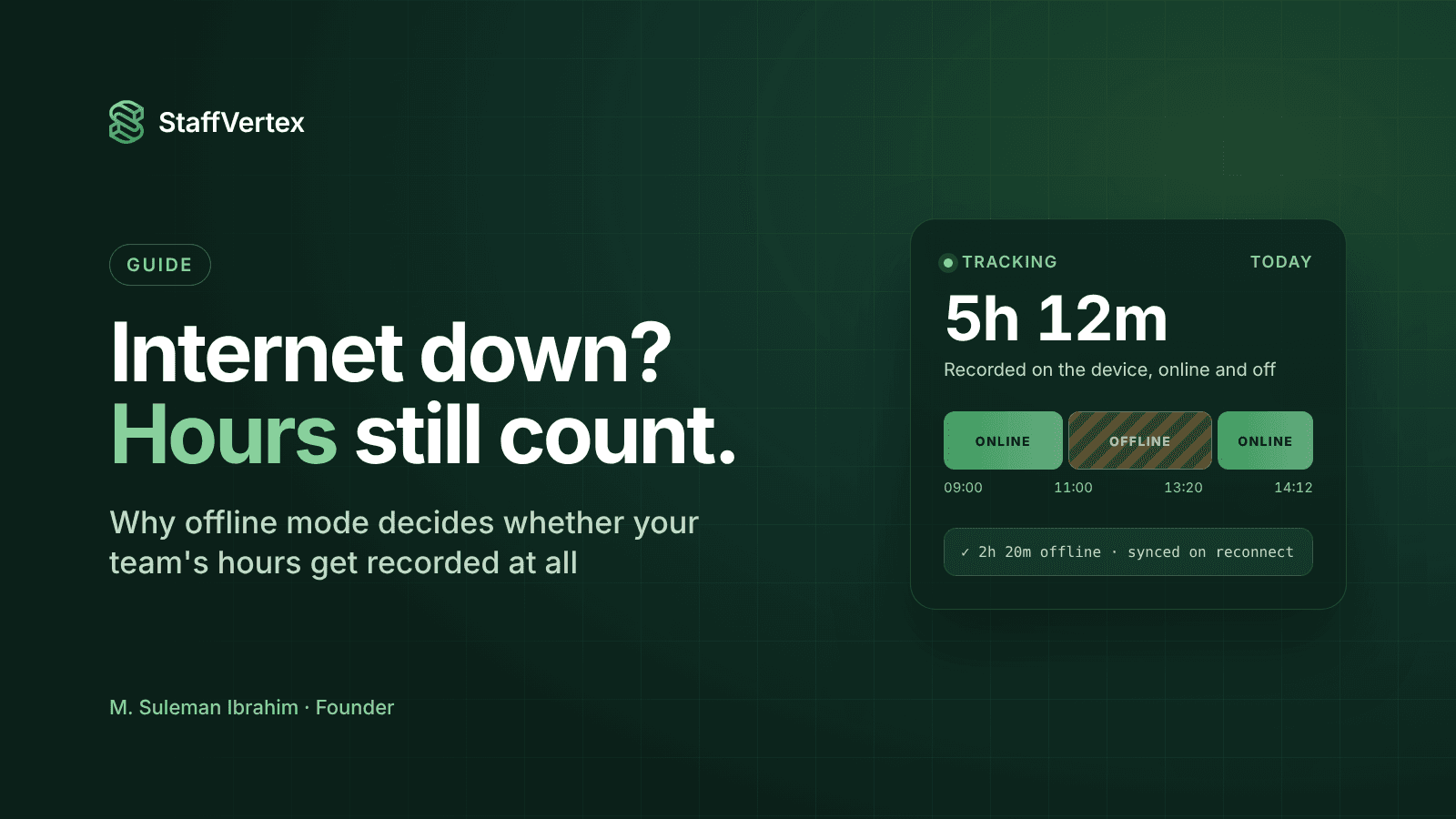
If any of your team works with patchy internet, offline mode is not a nice-to-have in a time tracker; it decides whether their hours are recorded at all. A good offline tracker keeps counting on the device when the connection drops, stores the time safely, protects it from clock tampering or errors, and syncs it to the server automatically when the connection returns, with nothing for the employee to re-enter.
Unreliable connectivity is part of daily life for many remote teams: scheduled power cuts, mobile data that drops in and out, home routers that restart, travel between client sites, or construction and field locations with weak signal. A browser-based timer that stops when the tab loses its connection turns every outage into missing hours and awkward conversations.
This guide explains what goes wrong without offline mode, what good offline mode really involves, the questions to ask any vendor, and how StaffVertex was engineered for teams that cannot count on the internet.
What goes wrong when a tracker needs the internet
Hours simply disappear. A web timer that loses its connection may stop, freeze or fail to save. The work happened; the record did not.
People rebuild time from memory. After an outage, employees add manual entries later. Those are less accurate, harder to verify and more likely to be questioned by clients.
Managers see false gaps. Dashboards show someone offline for two hours, which looks like absence when it was really a power cut.
Disputes follow. Clients question invoices with manual entries, employees worry about being underpaid, and managers spend time investigating instead of managing.
Trust erodes on both sides. Employees feel penalized for conditions they cannot control, and managers start to doubt the data.
The root cause is architectural: the tracker treats the server as the only place time can exist. Offline mode fixes that by making the employee's device a reliable place to record time until the server can be reached.
What good offline mode actually does
"Works offline" can mean many things on a feature list. A dependable implementation does five things.
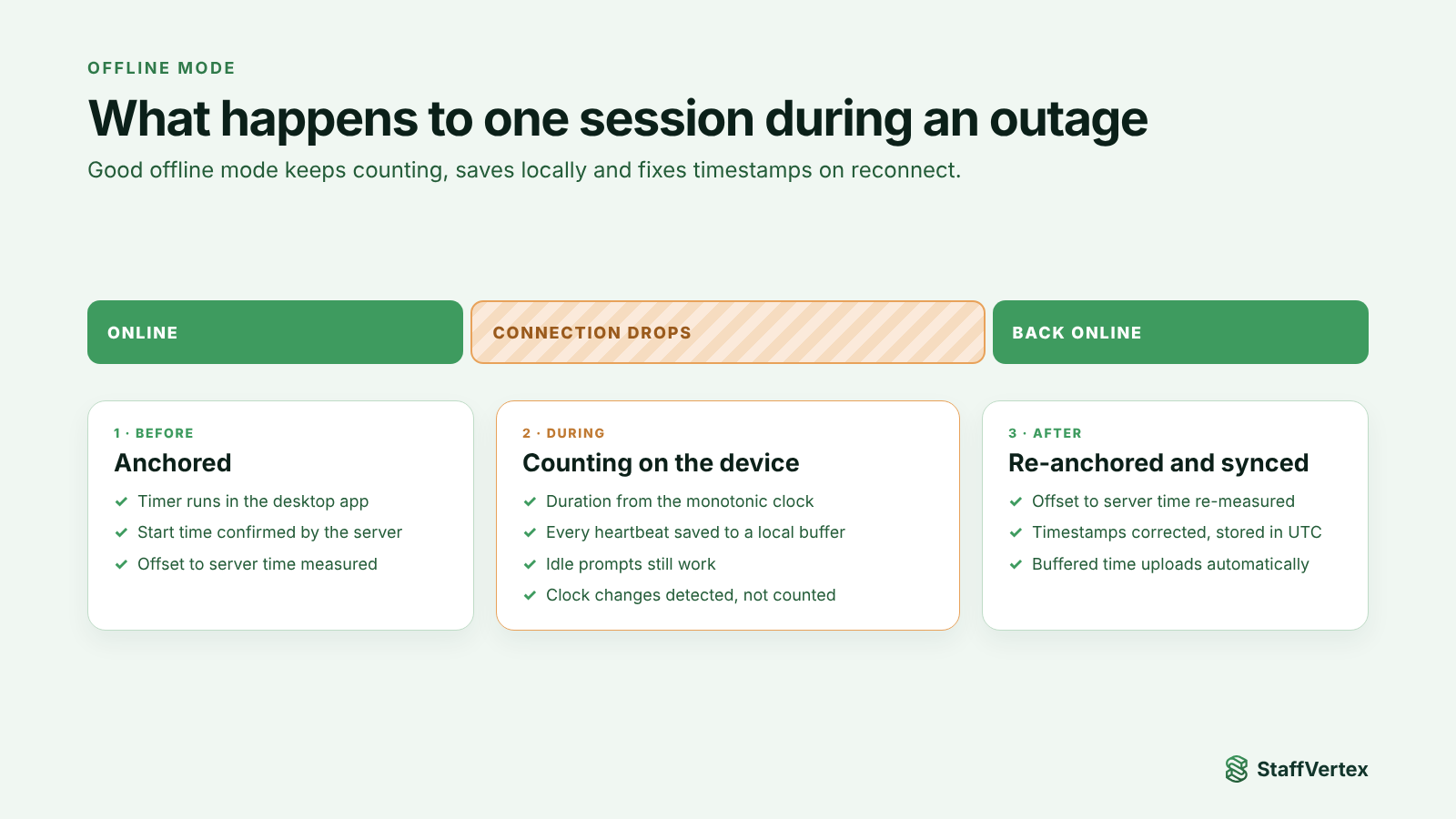
1. Keeps counting on the device. The timer runs in a desktop app, not a browser tab, so it carries on regardless of network state.
2. Stores time durably. Tracked time is written to local storage on the device as it happens, so a crash, restart or power cut does not wipe out the session.
3. Syncs automatically. When the connection returns, the app uploads what it recorded without the employee doing anything, and retries until the server confirms.
4. Keeps timestamps trustworthy. Offline, the only clock available is the computer's own, which can be wrong or changed. Good trackers measure elapsed time in a way that ignores clock changes and reconcile it with server time on reconnect (more on this below).
5. Behaves the same online and off. Idle detection, task selection and stopping the timer should work identically, so employees never need to think about their connection.
The hidden problem: clocks you cannot trust offline
When a tracker is online, the server can timestamp events. When it is offline, it has to rely on the computer's clock, and computer clocks are less reliable than most people think:
Clocks drift. A laptop that has not synced time recently can be minutes off.
Clocks jump. Time-zone changes, daylight saving, manual edits and automatic resyncs can move the clock forward or backward in an instant.
Clocks can be changed deliberately. Moving the system clock could, in a naive tracker, make an hour of work look like three.
Sleep and hibernation confuse timers. Some timers pause during sleep, others count through it, and the result can be wrong either way.
A well-built offline tracker separates two questions: how long did the person work, and when did it happen?
For how long, it uses the operating system's monotonic clock, which only moves forward and is not affected by clock changes.
For when, it anchors the session to server time. On reconnect, the app compares its clock with the server's and corrects timestamps so the recorded start and end reflect real time.
The result is time data that clients and managers can trust, even when it was captured with no connection at all.
Questions to ask any vendor
Before choosing a tracker for a team with unreliable internet, ask:
Does the timer keep running if the connection drops mid-session, or does it stop?
Where is offline time stored, and does it survive a crash or restart?
Does it sync automatically, and what happens if sync fails halfway?
How does it handle changes to the computer's clock while offline?
Do idle detection and stopping the timer work the same offline?
Is offline tracking included on every plan, or only higher tiers?
Can managers tell which entries were recorded offline?
Offline support in popular tools
Most established desktop trackers support offline work, but the details differ. Here is what vendors state publicly, as of October 2026.
Tool | Offline tracking | Notes from the vendor |
|---|---|---|
StaffVertex | Yes, every plan including Free | Desktop app keeps counting offline and syncs on reconnect |
Time Doctor | Yes, every plan | Listed as online and offline tracking |
Clockify | Yes | Desktop and mobile apps track offline |
Hubstaff | Yes | Desktop app records offline and uploads later |
Toggl Track | Partly (web timer) | Web app timer works offline for a limited time and syncs on reconnect |
Jibble | Yes | Offline mode syncs when connectivity returns |
DeskTime | Offline time feature | Lets employees account for offline tasks |
Ask each vendor questions 4 and 7 directly; they separate careful implementations from basic ones.
How StaffVertex handles offline tracking
StaffVertex is built in Pakistan, where power cuts and unstable connections are part of everyday work, so offline tracking was designed in from the start rather than added later.
A native desktop app. The Windows and macOS tracker is a lightweight native app, built with Rust and Tauri, that lives in the system tray. It keeps running whether or not there is a connection.
A local buffer on the device. While offline, time is written to a local database on the computer, so a crash or restart does not lose the session.
Tamper-resistant durations. Elapsed time is measured with the operating system's monotonic boot clock, which only moves forward and ignores changes to the system clock.
Server-anchored timestamps. Sessions are anchored to server time. On reconnect, the app negotiates the offset between the device clock and the server, NTP-style, and corrects start and end times before syncing. Times are stored in UTC.
Clock-jump detection. If the system clock jumps during a session, StaffVertex detects the step and re-bases the session on the next server anchor, so moving the clock cannot inflate hours.
Automatic sync with provenance. Buffered time uploads automatically when the connection returns, and each time log carries metadata about how it was recorded.
Idle prompts that still ask. When the person returns from inactivity, StaffVertex asks whether that time was work or a break, online or off.
Offline tracking is included on every plan, including Free. Pro is $4 and Business $9 per seat per month on monthly billing (pricing).
Best practices for teams with unreliable internet
Use the desktop app, not a browser timer, for anyone whose connection is unpredictable.
Start the timer before the work, not after. If it is running when the connection drops, nothing is lost.
Let the app sync before shutting down when possible, but do not worry if power cuts out; buffered time uploads next time.
Keep manual entries for genuine exceptions, such as work done on paper or away from the computer, and add a note.
Tell managers that offline gaps on a dashboard are not absences. Review hours after sync, not in real time during an outage.
Keep devices' time settings on automatic. A well-built tracker corrects for clock errors, but accurate clocks make everything smoother.
Try StaffVertex free
Download the StaffVertex desktop app and start a free 14-day trial. Pull the network cable halfway through and see your hours arrive safely when you reconnect.