This free timesheet template gives remote teams everything they need to log hours by client, project and task, calculate billable amounts automatically, and summarize the week in minutes. It works in both Microsoft Excel and Google Sheets, and you can set it up from this page in about five minutes.
What's included:
A daily time log with start and end times, breaks, billable flags and rates.
Ready-to-paste formulas for hours, overnight shifts and billable amounts.
A weekly summary by project and by person.
A copy-and-paste CSV version so you can import it directly.
Guidance on when a spreadsheet stops being enough.
The free timesheet template
Each row is one block of work. Use one sheet per person per week, or one shared sheet for the whole team with the Employee column filled in.
Column | What goes in it |
|---|---|
A: Date | The day the work started |
B: Employee | Team member's name |
C: Client | Who the work is for (use "Internal" for non-client work) |
D: Project | The project or engagement |
E: Task | The specific task, ticket or activity |
F: Start | Start time, 24-hour format |
G: End | End time, 24-hour format |
H: Break (min) | Unpaid break minutes inside this block |
I: Hours | Calculated automatically |
J: Billable | Yes or No |
K: Rate (USD) | Hourly bill rate for this work |
L: Amount (USD) | Calculated automatically |
M: Notes | Context, especially for manual or unusual entries |
N: Status | Draft, Submitted or Approved |
Example: one remote developer's week
Date | Employee | Client | Project | Task | Start | End | Break | Hours | Billable | Rate | Amount | Status |
|---|---|---|---|---|---|---|---|---|---|---|---|---|
2026-09-21 | Ayesha | Acme Corp | Website redesign | Homepage build | 09:00 | 13:00 | 0 | 4.00 | Yes | 30 | 120.00 | Approved |
2026-09-21 | Ayesha | Acme Corp | Website redesign | Client call | 14:00 | 15:00 | 0 | 1.00 | Yes | 30 | 30.00 | Approved |
2026-09-22 | Ayesha | Brightline | Mobile app | API integration | 10:00 | 18:30 | 60 | 7.50 | Yes | 35 | 262.50 | Approved |
2026-09-23 | Ayesha | Internal | Training | Security course | 09:00 | 11:00 | 0 | 2.00 | No | 0 | 0.00 | Approved |
2026-09-23 | Ayesha | Acme Corp | Website redesign | Revisions (change request) | 11:30 | 16:00 | 30 | 4.00 | Yes | 30 | 120.00 | Approved |
2026-09-24 | Ayesha | Brightline | Mobile app | Bug fixes (evening shift) | 20:00 | 01:30 | 30 | 5.00 | Yes | 35 | 175.00 | Submitted |
2026-09-25 | Ayesha | Acme Corp | Website redesign | QA and deployment | 09:00 | 12:30 | 0 | 3.50 | Yes | 30 | 105.00 | Submitted |
Total | 27.00 | 812.50 |
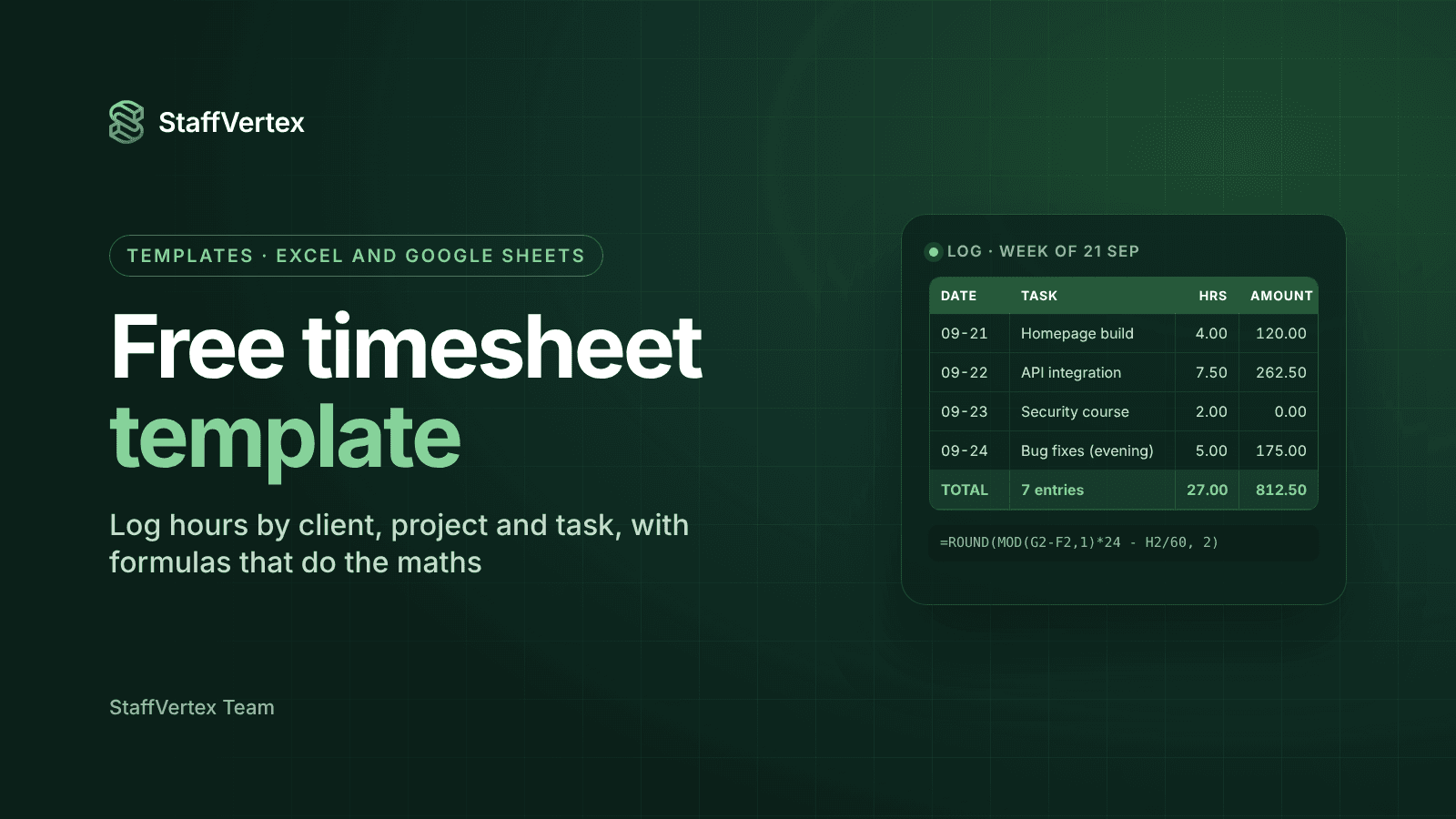
That week shows 27 hours in total, 25 of them billable, worth $812.50 across two clients. The evening shift on Thursday crosses midnight, which the formulas below handle correctly.
The formulas
These work the same way in Excel and Google Sheets. They assume headers in row 1 and your first entry in row 2; copy each formula down the column.
Hours (column I). Handles shifts that cross midnight and subtracts breaks:
=ROUND(MOD(G2-F2,1)*24 - H2/60, 2)
MOD(G2-F2,1) returns the elapsed fraction of a day even when the end time is after midnight (see Microsoft's MOD function reference), *24 converts it to hours, and H2/60 removes the break.
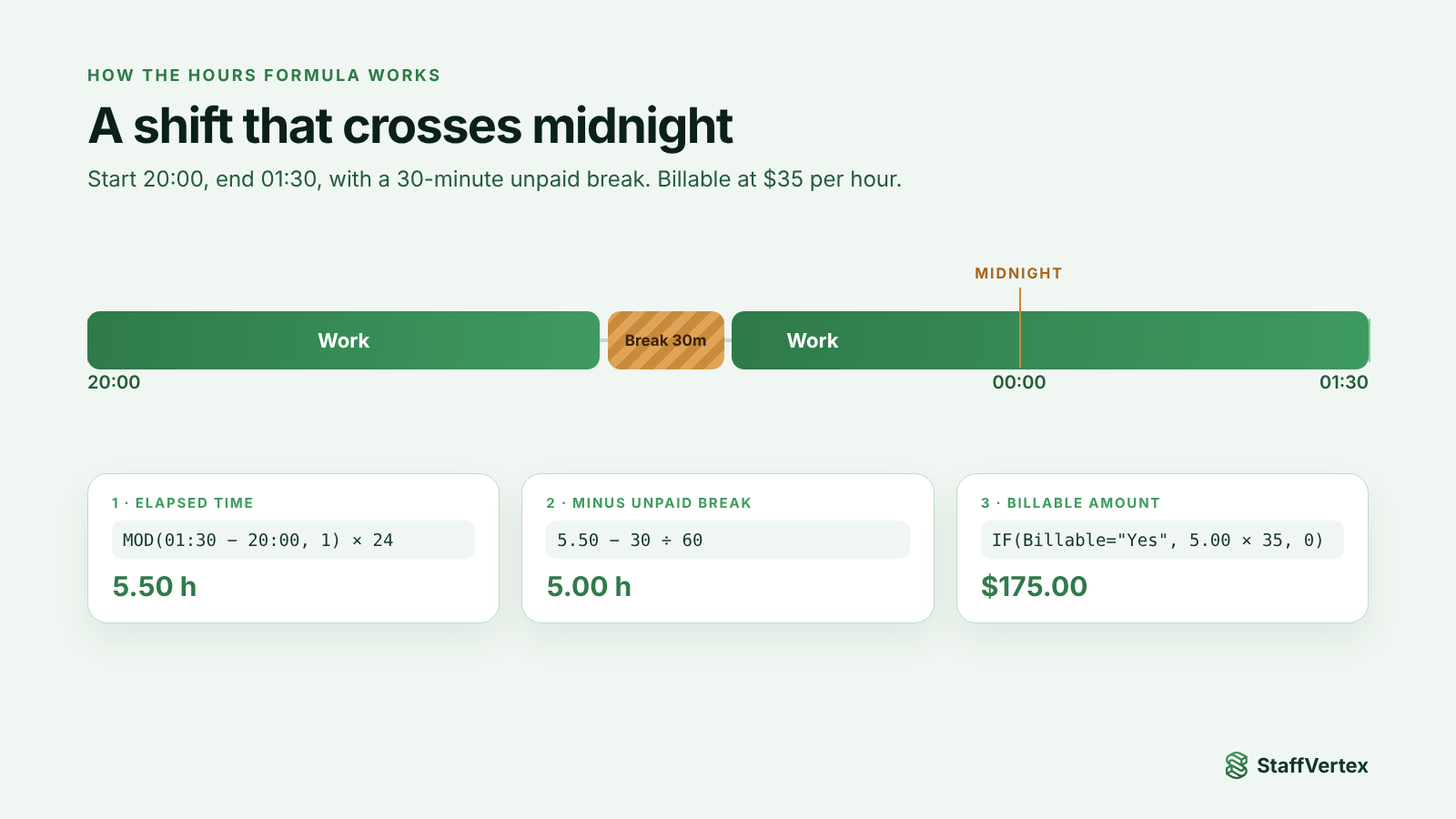
Amount (column L). Only billable rows earn money:
=IF(J2="Yes", I2*K2, 0)
Weekly totals. Put these below the log or on a summary sheet:
Total hours: =SUM(I2:I200)
Billable hours: =SUMIF(J2:J200,"Yes",I2:I200)
Billable amount: =SUM(L2:L200)
Billable share: =IFERROR(SUMIF(J2:J200,"Yes",I2:I200)/SUM(I2:I200),0)
Tips
Format columns F and G as Time (for example 13:30) and column I as a number with two decimals.
If you track in decimal hours directly instead of start and end times, skip columns F to H and type hours straight into column I.
Set it up in five minutes
Step 1: Copy the starter data. Copy this CSV, which includes the headers and the example week, with Hours and Amount left blank for the formulas.
Date,Employee,Client,Project,Task,Start,End,Break (min),Hours,Billable,Rate (USD),Amount (USD),Notes,Status
2026-09-21,Ayesha,Acme Corp,Website redesign,Homepage build,09:00,13:00,0,,Yes,30,,,Approved
2026-09-21,Ayesha,Acme Corp,Website redesign,Client call,14:00,15:00,0,,Yes,30,,,Approved
2026-09-22,Ayesha,Brightline,Mobile app,API integration,10:00,18:30,60,,Yes,35,,,Approved
2026-09-23,Ayesha,Internal,Training,Security course,09:00,11:00,0,,No,0,,,Approved
2026-09-23,Ayesha,Acme Corp,Website redesign,Revisions (change request),11:30,16:00,30,,Yes,30,,Out of scope; agreed by email,Approved
2026-09-24,Ayesha,Brightline,Mobile app,Bug fixes (evening shift),20:00,01:30,30,,Yes,35,,,Submitted
2026-09-25,Ayesha,Acme Corp,Website redesign,QA and deployment,09:00,12:30,0,,Yes,30,,,Submitted
Step 2: Import it.
Google Sheets: create a blank sheet, then File → Import → Upload, or paste into cell A1 and use Data → Split text to columns.
Excel: save the text as a .csv file and open it, or paste into A1 and use Data → Text to Columns with comma as the delimiter.
Step 3: Add the formulas. Put the Hours formula in I2 and the Amount formula in L2, then fill them down.
Step 4: Add dropdowns. Select column J and add data validation with the list Yes, No. Do the same for column N with Draft, Submitted, Approved.
Step 5: Protect the formulas. Lock columns I and L so team members cannot overwrite them by accident, and share the sheet with edit access to the log area only.
Weekly summary by project and person
Add a second sheet called Summary. List each project in column A and use SUMIFS to pull totals from the log (named Log here):
Hours: =SUMIFS(Log!I:I, Log!D:D, A2)
Amount: =SUMIFS(Log!L:L, Log!D:D, A2)
For a per-person summary, list names in column A and swap Log!D:D for Log!B:B. To limit it to one week, add date conditions such as Log!A:A, ">="&$F$1, Log!A:A, "<="&$G$1, with the week's start and end dates in F1 and G1.
Google Sheets shortcut. One QUERY formula builds the whole project summary:
=QUERY(Log!A1:N500, "select D, sum(I), sum(L) where D is not null group by D label sum(I) 'Hours', sum(L) 'Amount'", 1)
Summary for the example week
Project | Client | Hours | Amount (USD) |
|---|---|---|---|
Website redesign | Acme Corp | 12.50 | 375.00 |
Mobile app | Brightline | 12.50 | 437.50 |
Training | Internal | 2.00 | 0.00 |
Total | 27.00 | 812.50 |
Where spreadsheets fall short for remote teams
A spreadsheet timesheet is a good start for a freelancer or a small team. It starts to strain when:
Hours are typed from memory. Spreadsheets record what people remember, not what happened, so short tasks and calls go missing.
The team grows. Ten people editing one sheet, or ten separate sheets, means copy-and-paste errors and version confusion.
Clients ask for proof. A typed start and end time is hard to verify.
Outages happen. Online sheets need a connection; offline copies create conflicting versions.
Invoices and payroll are built by hand. Every cycle, someone reworks the summary into invoices and pay calculations.
Approvals live in email. There is no clear record of who approved what and when.
The upgrade: StaffVertex
StaffVertex replaces the spreadsheet with the same structure, automated:
A tray timer on Windows and Mac logs time against client, project and task as people work, instead of typing it later.
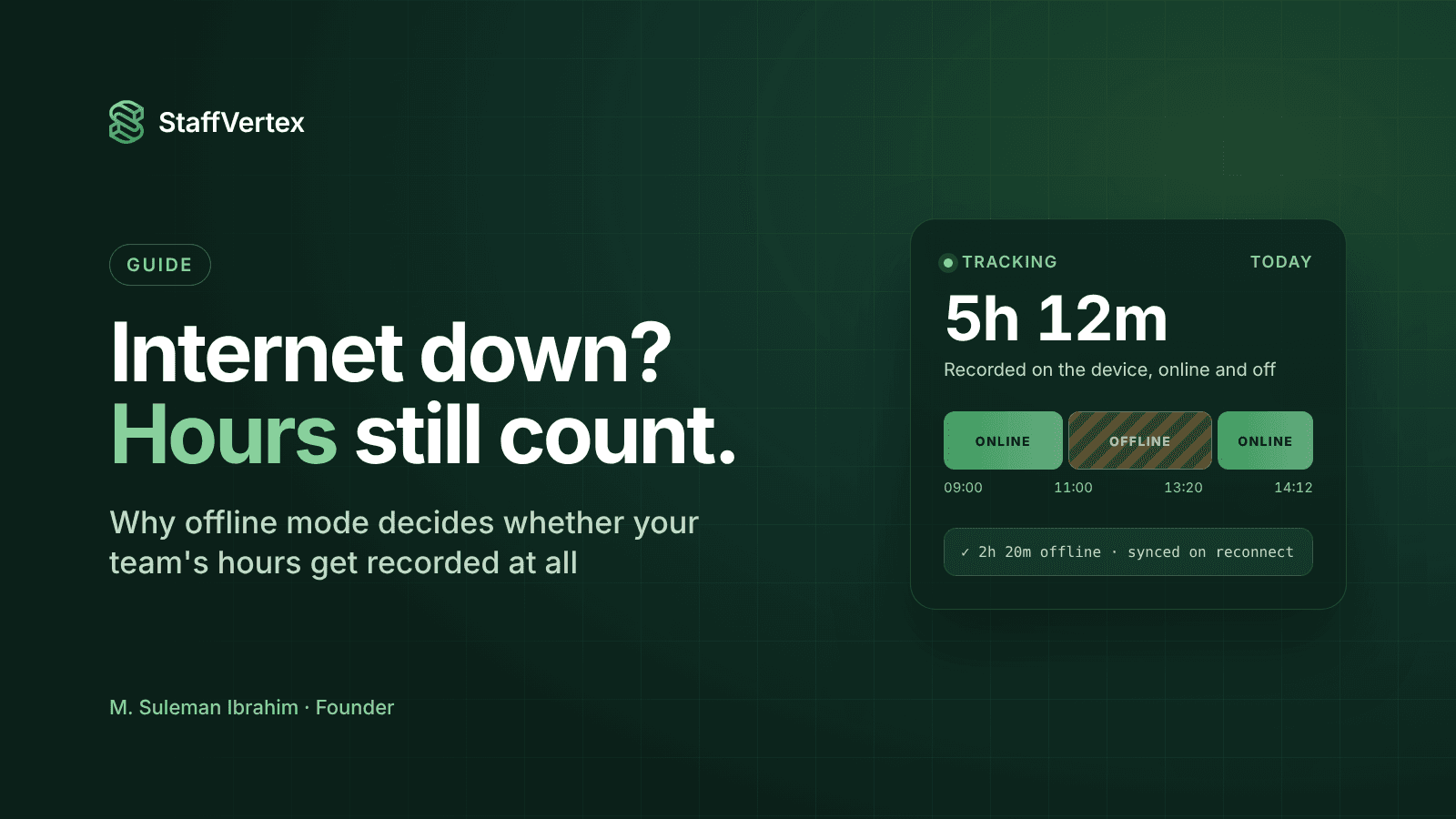
Offline tracking keeps counting through outages and syncs automatically.
Idle prompts and manual entries with notes keep the record honest.
Timesheets, approvals and reports by project, person and client.
On Business, automatic client invoices and team payslips from the same approved hours.
StaffVertex is free for one person; Pro is $4 and Business $9 per seat per month on monthly billing (pricing).
Ready to stop typing timesheets?
Start a free 14-day StaffVertex trial and let the desktop timer fill in your timesheet as you work. No card is required.