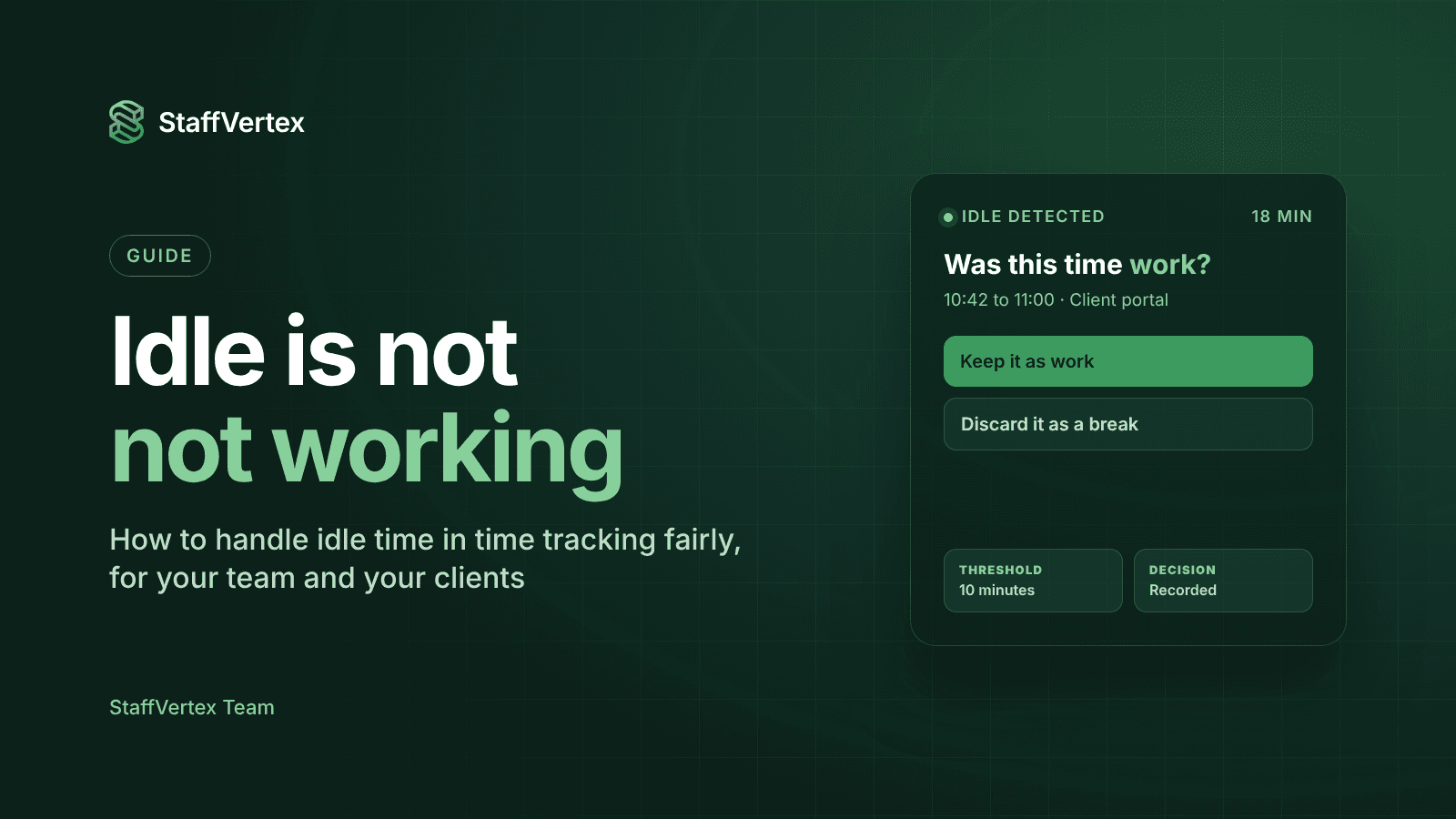
The fairest way to handle idle time is to ask the person who was idle. When a tracker detects that the keyboard and mouse have been quiet for a set period, it should prompt the employee on their return to keep the time as work, discard it as a break, or reassign it, and record that choice. Silently deleting idle time underpays people for real work; silently keeping it overbills clients for forgotten timers.
Idle time is one of the most sensitive parts of time tracking. It sits right where accuracy, pay and trust meet. Get it wrong one way and employees feel penalized for thinking, reading or taking a call. Get it wrong the other way and clients pay for lunch breaks.
This guide explains how idle detection works, compares the three common ways tools handle it, and gives you a fair idle-time policy you can adopt today.
What idle time is and how trackers detect it
In time tracking, idle time is a period while the timer is running but the computer shows no input: no keystrokes, mouse movement or touch. Desktop trackers watch for input and, when nothing happens for a threshold you set, typically 5 to 15 minutes, they mark the session as idle from the moment the last input occurred.
What happens next depends on the tool:
The timer may keep running and flag the idle period.
The timer may stop automatically.
The idle minutes may be deleted from the timesheet.
The user may be asked what to do when they return.
Idle detection measures one thing only: whether someone touched the computer. It says nothing about whether they were working.
Three ways tools handle idle time
Approach | How it works | Upside | Downside |
|---|---|---|---|
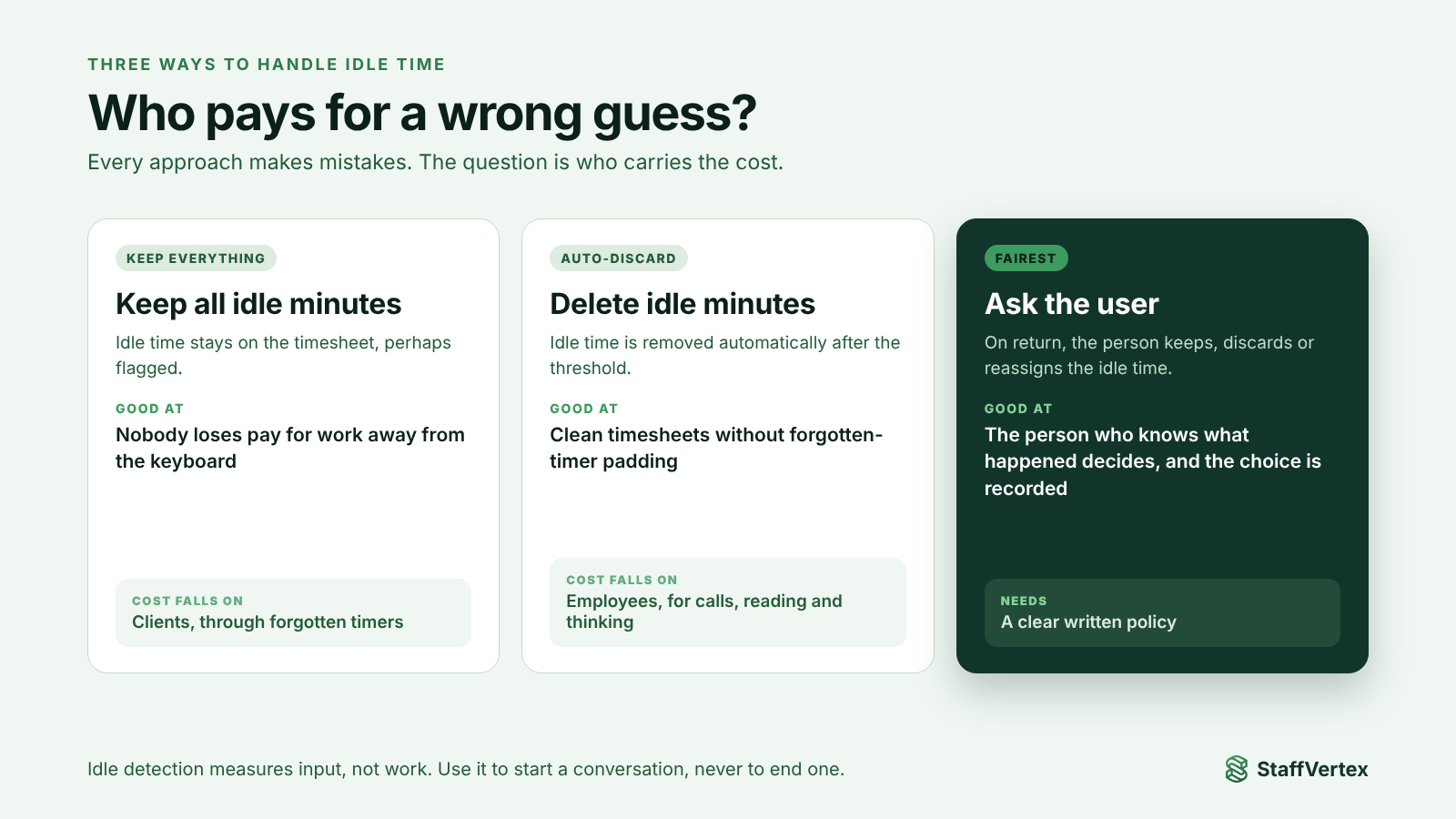
Keep everything | Idle minutes stay on the timesheet; perhaps flagged | Nobody loses pay for real work away from the keyboard | Forgotten timers inflate hours and invoices |
Auto-discard | Idle minutes are removed automatically after the threshold | Clean timesheets with no forgotten-timer padding | Reading, thinking, calls and whiteboarding disappear; employees feel penalized |
Ask the user | On return, the tool prompts: keep, discard or reassign the idle time | The person who knows what happened decides; the choice is recorded | Needs a clear policy so answers are consistent |
Auto-discard looks efficient, but it quietly shifts the cost of false positives onto employees. Keeping everything shifts it onto clients. Asking is the only option that puts the decision with the person who knows what actually happened.
Idle is not the same as not working
Much valuable work involves no keyboard or mouse at all. Common examples:
Phone and video calls with clients or colleagues, especially on a phone or a second device.
Reading and reviewing specifications, contracts, research or long documents.
Thinking and planning, including sketching on paper or a whiteboard.
Watching training or recorded demos without interacting.
Pair work, where one person drives and the other advises.
Waiting on long processes, such as builds, renders or uploads that must be monitored.
And some keyboard activity is not work. That is why activity levels and idle flags should start a conversation, never end one. The person doing the work is best placed to say what the quiet minutes were.
A fair idle-time policy
Set a sensible threshold. Five minutes flags too much normal reading; 30 minutes misses long breaks. Ten to fifteen minutes suits most knowledge work. Consider longer thresholds for roles with many calls.
Prompt, don't delete. Configure your tool to ask the user on return rather than discarding time automatically.
Make the options clear. Keep it as work (with an optional note), discard it as a break, or move it to another task, for example a client call.
Allow corrections with a reason. If someone clicks the wrong option, they should be able to fix it through a manual entry with a note, visible to their manager.
Review patterns, not incidents. Look at idle decisions over weeks, not individual days.
Put it in writing. Share the policy so everyone applies the same rules.
Policy template you can copy
Idle time policy. Our time tracker marks time as idle after [10] minutes without keyboard or mouse activity. When you return, you will be asked whether the idle time was work. Keep it if you were working away from the keyboard, for example on a call, reading or planning, and add a short note for anything over [30] minutes. Discard it if you took a break. If you choose incorrectly, add a manual entry with a reason. Managers review idle-time patterns monthly and will ask before making any changes. Idle-time data is never used on its own to assess performance.
How popular tools handle idle time
Tool | Idle handling (from vendor help pages, October 2026) |
|---|---|
StaffVertex | Detects inactivity and asks the user whether to keep or discard the idle time; the choice is recorded. Works online and offline, on every plan. |
Hubstaff | Idle time settings on Grow, Team and Enterprise. By default it prompts the user to keep, discard or reassign idle time; always keeping or automatically discarding it requires Team or above. |
Toggl Track | With idle detection on in the browser extension, it notifies you and lets you keep the idle time, discard it, or discard it and keep tracking. |
Clockify | Idle detection and reminders are listed as free plan features. |
Time Doctor | After a set period without activity, it shows a "Were you working?" pop-up if admins allow time edits; confirmed time is logged as manual time. |
StaffVertex's approach
StaffVertex was designed around the "ask the user" principle. When the Windows or Mac desktop app detects inactivity during a running session, it waits until the person returns and asks what to do with that time. Nothing is removed silently, and managers see the outcome in timesheets rather than raw activity gaps.
The same prompt works when the computer is offline, and the decision syncs with the rest of the session when the connection returns. Combined with manual time entries on Pro and Business, it gives employees a fair way to account for work away from the keyboard.
StaffVertex is free for one user; Pro is $4 and Business $9 per seat per month on monthly billing (pricing).
Try StaffVertex free
Start a free 14-day StaffVertex trial and see how idle prompts keep timesheets accurate without penalizing real work. No card is required.